
After the contract has been created with the document generator, it is send by email to the CdP to sign it. After signing, the contract is send to the onboardee/ employee to be signed.
The contract can be signed manual, but also digital.
To sign the contract digital, the tool DocuSign is used.
This document describes how this tool is working.
Wherever “he” is written, can be read as “he/she/it”.
Names in this manual are those of fictitious people.
Digital signing by Chef de Poste
1. After the contract has been created, an email will be sent from 3W Lokaal Personeel
2. Open the mail with the link to the contract
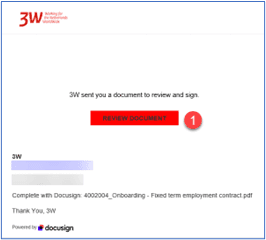
3. Click on the link Review Document (1)
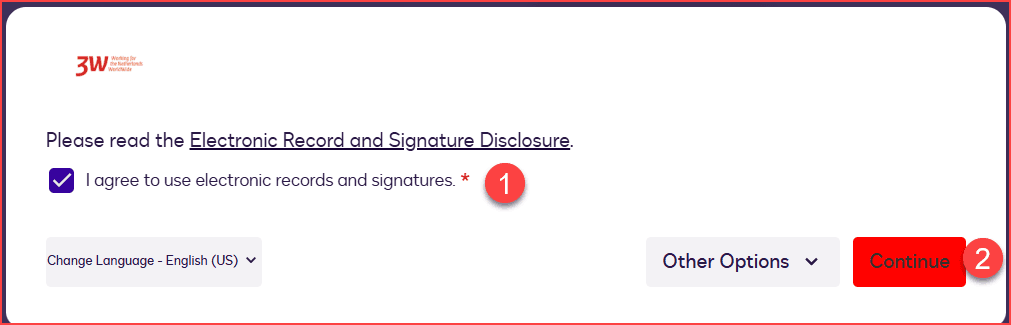
4. Check the box next to I agree to use electronic records and signatures.Required (1)
5. Click on Continue (2) to go to the next step.
6. Read the contract and scroll to the end of the contract.
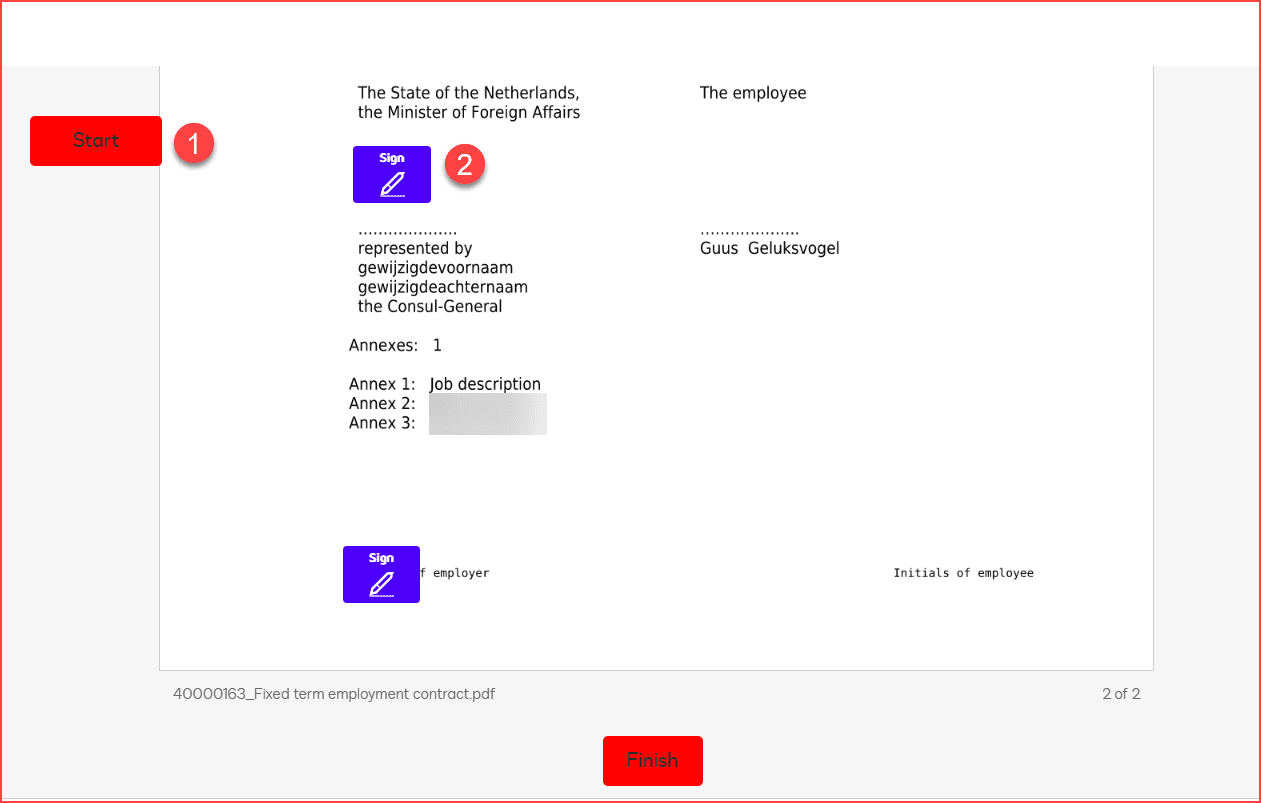
7. Click on Start (1)
8. Click on Sign (2)
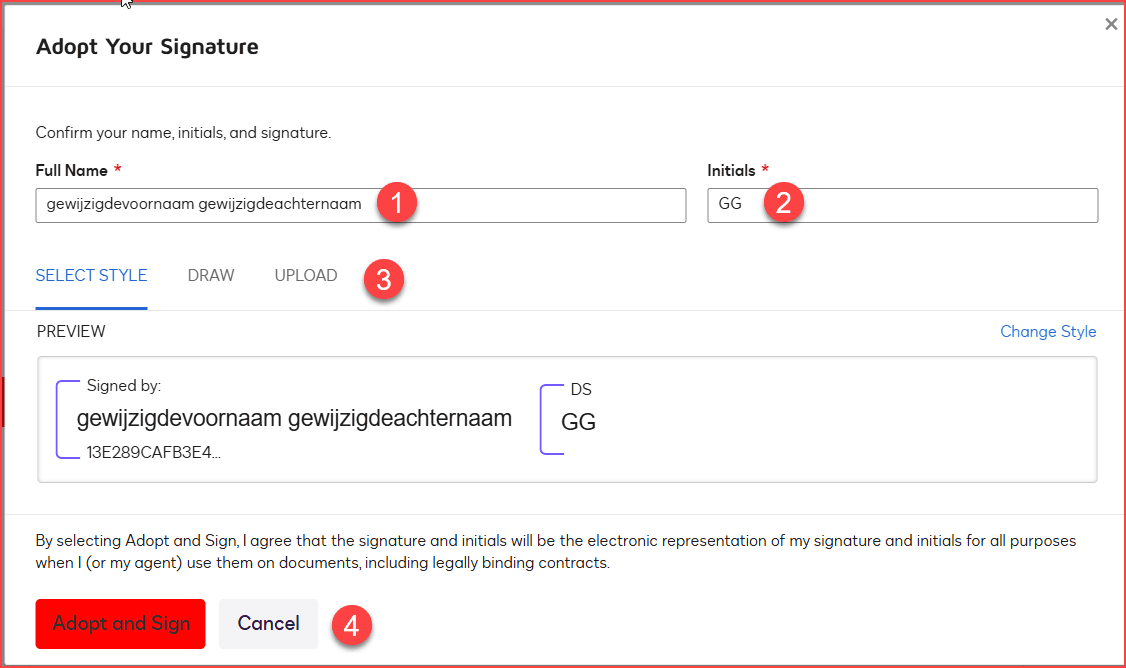
9. Check the Full Name (1) and adjust if necessary
10. Check the Initials (2) and adjust if necessary
11. Choose a method (3) to sign the document.
- a. SELECT STYLE: select one of the pre-formatted signature styles. This is both for your signature as your initials
- b. DRAW: Create a freehand drawing of your signature and initials. If you have a tablet with a touch screen, you can use your mouse pointer or even your finger to create the signature and initials. Just make sure you place them in the correct box.
- c. UPLOAD: Upload your own image files with your signature and initials. If you already have a file containing the signature or initials, you can upload it. The file must meet the following requirements:
i. Image height: 145 pixels
ii. Image width: maximum width is 400 pixels for signatures and 150 pixels for initials (the width of the image may vary depending on the length of a person's name)
iii. Maximum file size: 200 KB
iv. Accepted file types: GIF, JPG, PNG and BMP
12. Click on ADOPT AND SIGN (4) to save the signatures.
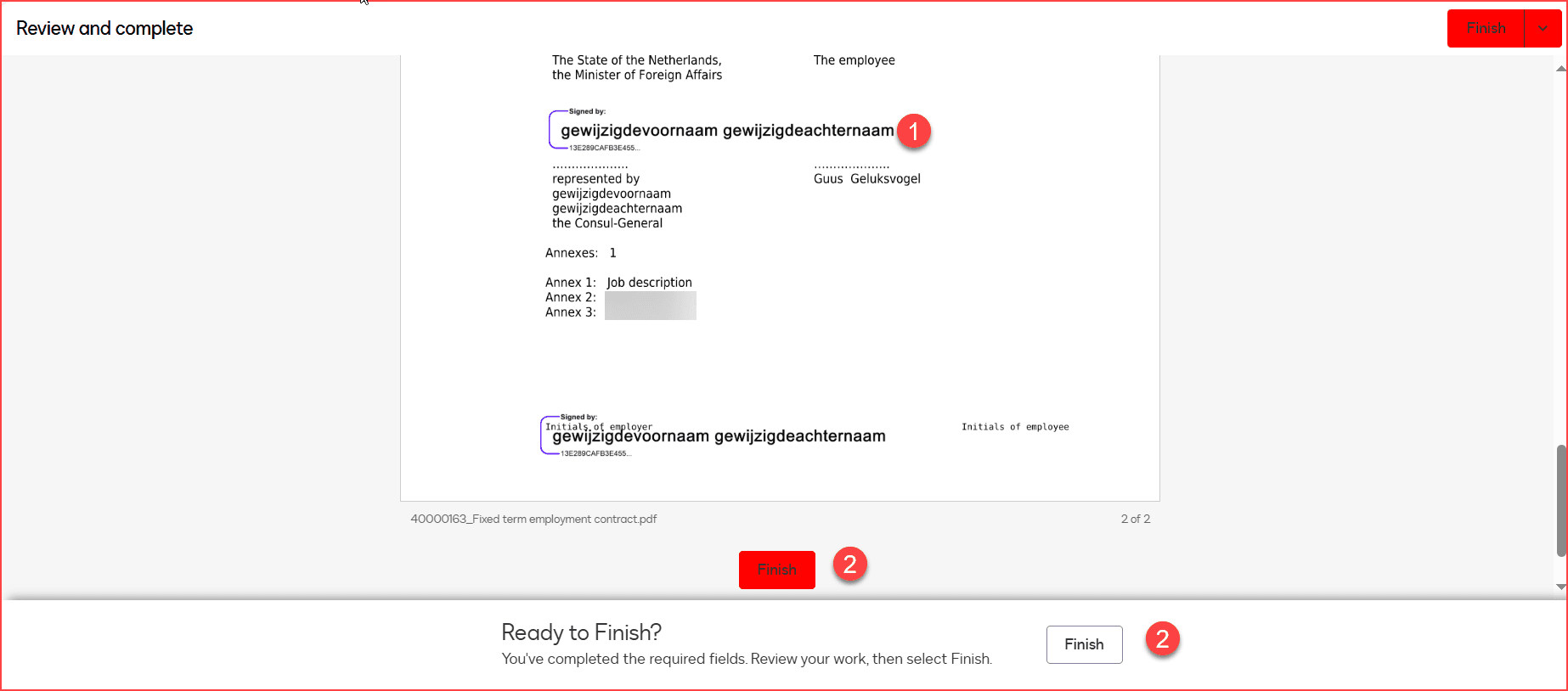
13. The signature (1) has been added to the document. And where needed the initials are also added.
14. Click on all the other sign-buttons. The signature or initials are added where necessary.
15. Click on Finish (2) to finish the signing and closing the document
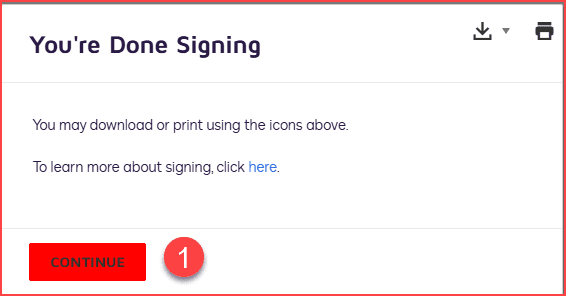
16. Click on Continue (1). An e-mail is send to the employee/ onboardee to sign the document.
Digital signing by employee / onboardee
1. After the contract has been created and signed by the Chef de Poste, an email will be sent from 3W Lokaal Personeel.
2. Open the mail with the link to the contract.
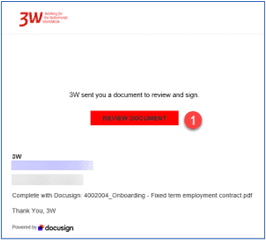
3. Click on the link Review Document (1)
4. Check the box next to I agree to use electronic records and signatures.* (1)
5. Click on Continue (2) to go to the next step.
6. Read the contract and scroll to the end of the contract.
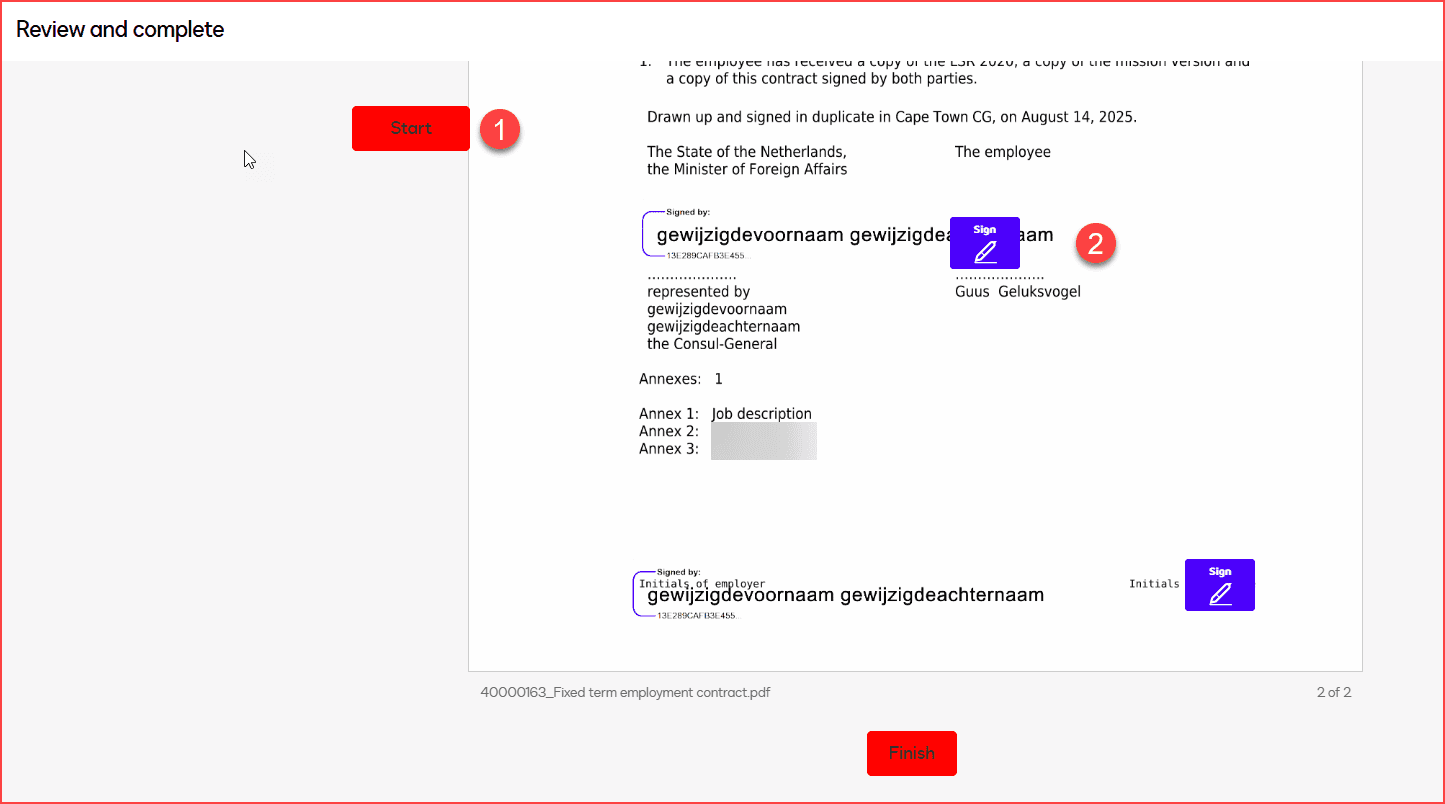
7. Click on Start (1)
8. Click on Sign (2)
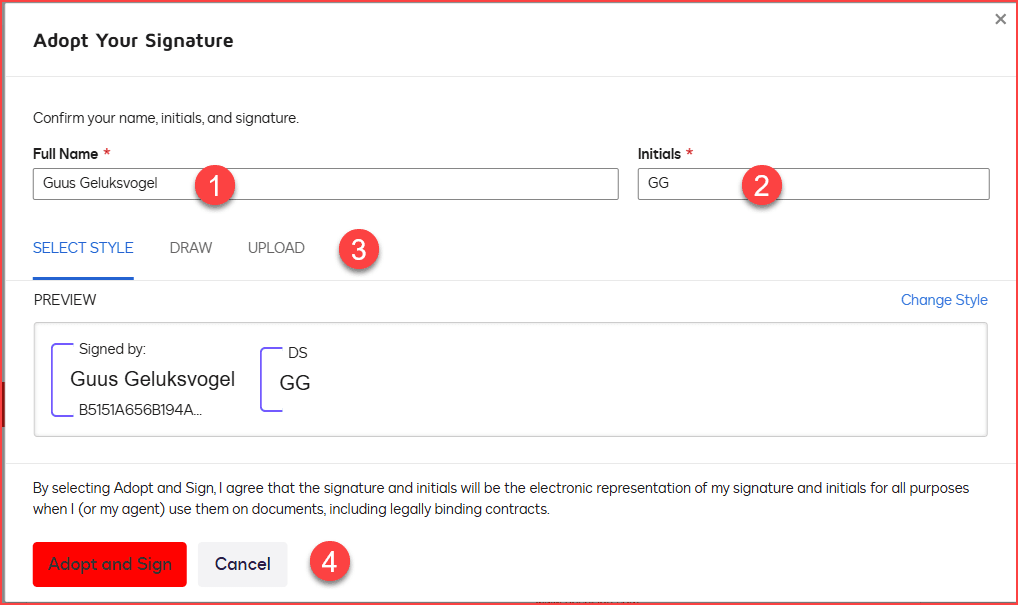
9. Check the Full Name (1)
10. Check the Initials (2)
11. Choose a method (3) to sign the document.
- a. SELECT STYLE: select one of the pre-formatted signature styles. This is both for your signature as your initials
- b. DRAW: Create a freehand drawing of your signature and initials. If you have a tablet with a touch screen, you can use your mouse pointer or even your finger to create the signature and initials. Just make sure you place them in the correct box.
- c. UPLOAD: Upload your own image files with your signature and initials. If you already have a file containing the signature or initials, you can upload it. The file must meet the following requirements:
i. Image height: 145 pixels
ii. Image width: maximum width is 400 pixels for signatures and 150 pixels for initials (the width of the image may vary depending on the length of a person's name)
iii. Maximum file size: 200 KB
iv. Accepted file types: GIF, JPG, PNG and BMP
12. Click on ADOPT AND SIGN (4) to save the signatures.
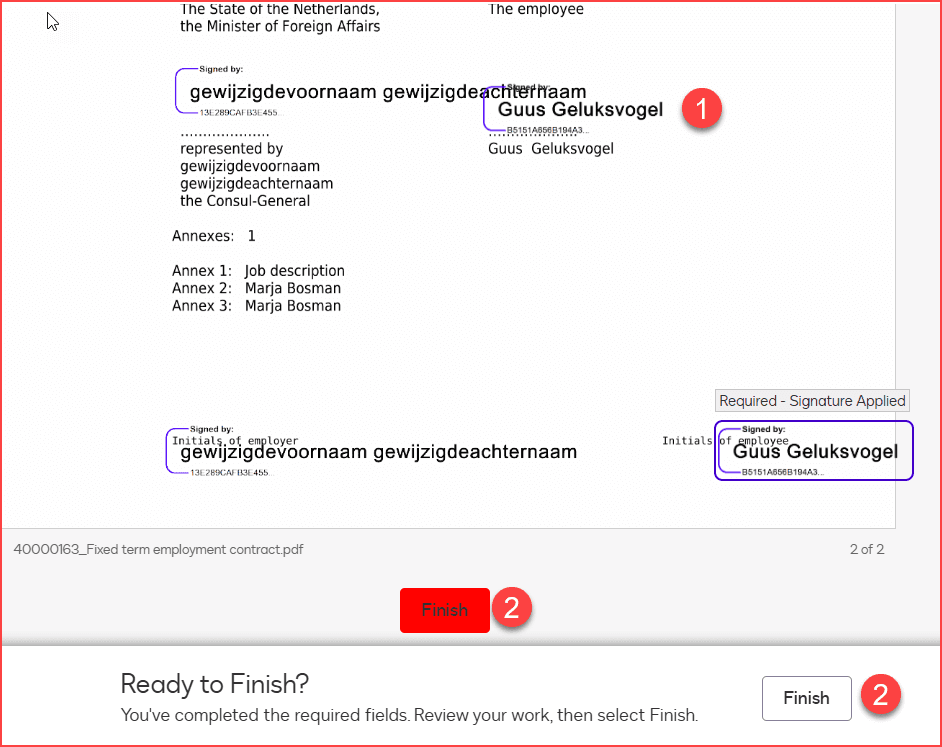
13. The signature (1) has been added to the document. And where needed the initials are also added.
14. Click on all the other sign-buttons. The signature or initials are added where necessary.
15. Click on Finish (2) to finish the signing and closing the document
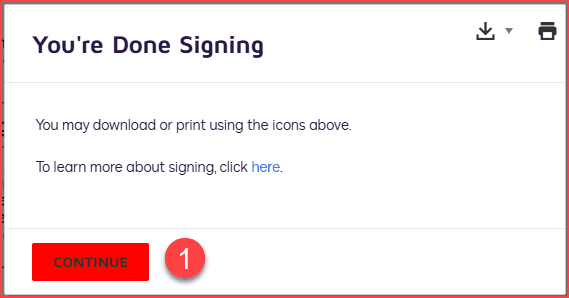
16. Click on Continue (1).
Next actions
- An email is automatically send to the employee/ onboardee and the Chef de Poste with the link to the signed document.
- 3W Lokaal Personeel receives a notification that the contract has been signed. They will activate the account of the onboardee.
- The contract has been archived in the DPF of the employee.